Intro
Please make sure you are finished with the Getting Started - Router guide before continuing to this guide.
In this guide we will clone a preconfigured windows server VM image, and connect to it. You will need to use WireGuard, again make sure you are done with all the steps in Getting Started - Router
Clone The VM:
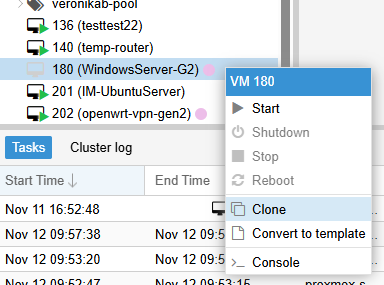
- Find the VM called “180 - WindowsServer-G2”. Right click on it, and press the Clone button.
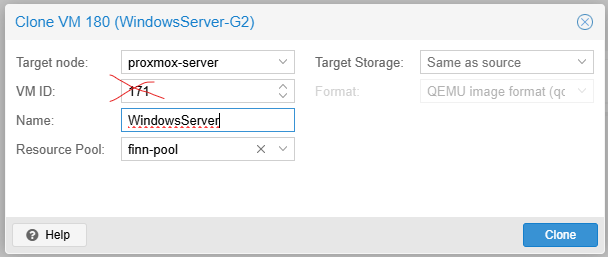
- In the clone Window, you can copy the settings below, the VM ID will be randomly generated, don’t change it. Select your own resource pool.
- Find the new VM you’ve created, and go under the Hardware tab. Locate the Network Device (net0)
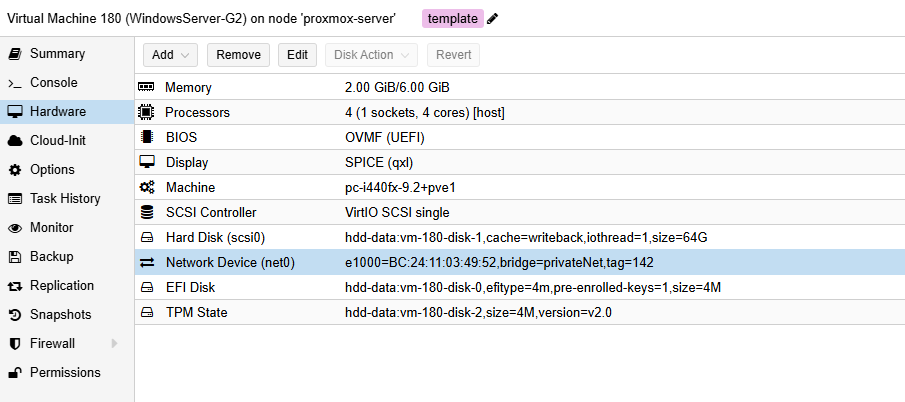
- Press the Edit button to open the Network Settings
- Edit the VLAN Tag, this is the ONLY thing you need to change. Change this to the ID of your router. This is the same “very important number” you were asked to write down during the Getting Started - Router guide.

- Press the OK button to exit, then start the VM. Wait about 30 seconds before continuing to the next stage in this guide.
Connecting to the server for the first time
You will be using Wireguard to enter your private network, then RDP to connect to the server. RDP is an app installed on all Windows computers.
- Open Wireguard, and press the Activate button. Make sure you get a “Latest handshake” like shown below.
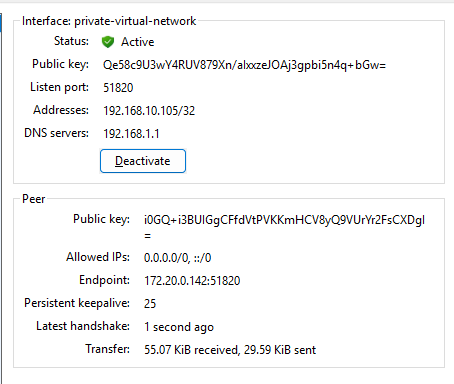
- If this is not working follow these steps:
- If you are on a laptop, make sure you are connected to IM-Nett
- Is your router VM turned on?
- Did you follow the Getting Started - Router guide properly?
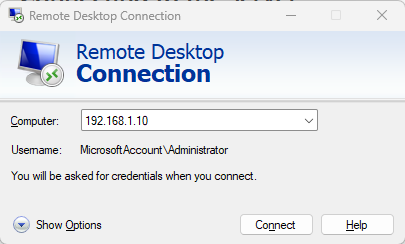
- Open the RDP app, also called the “Tilkobling til eksternt skrivebord” if your computer is in Norwegian
- The IP-address of the server is 192.168.1.10 (on your private network), so enter it like below:
- When asked for password, press the more choices button and enter the credentials below. This is a temporary password do NOT select remember me!
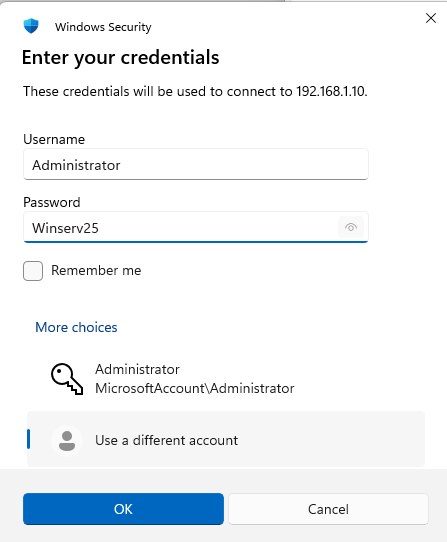
- Press OK to connect and press Yes if a certificate pop up appears.
- After connecting to the server, you need to change the password of the Administrator user. Open the settings app on the server, and navigate to Accounts > Sign In options.
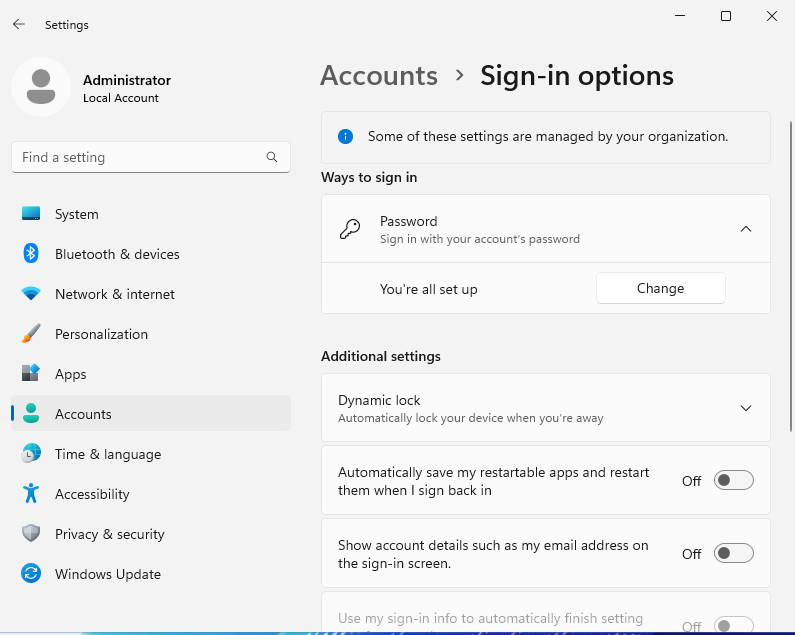
- Change your password and WRITE IT DOWN IN YOUR LOG. PLEASE write it down.
- After changing your password close the RDP Window, and follow the regular server connection guide. Connecting to Windows Server VM